Stripe & online payments
Set up Stripe – step by step
Create a Stripe account, verify your identity and add a bank account so your shop takes payments by card, Apple Pay and Google Pay.
- For admins
Goal
Under "Settings" → "Bank Details" the "Online payments (Stripe)" status shows "Active", customers pay online in your shop and the money reaches your bank account.
What you need
- Admin role in Plexbook
- Official photo ID (passport, ID card or driving licence) of the legal representative
- IBAN of the account Stripe pays out to
- Company details: legal form, address, website or shop link and – if you have one – company register, association number or VAT ID
- A phone for the SMS confirmation code
Step by step
In the dashboard open Settings and the tab Bank Details. In the section Online payments (Stripe) click Connect with Stripe. During the first setup the same step is in the wizard under Stripe Connect or in the card Set up your organization under Set up payments.
Image coming soon"Settings" → "Bank Details": this is where you start. Stripe opens in a new window. Sign in with your email address or create a new Stripe account and confirm the code Stripe sends by SMS.
Choose the country and the legal form (e.g. sole trader, association or limited company) and enter the company name, address, industry and your website or the link to your Plexbook shop.
Verify your identity: name, date of birth and address of the legal representative, if needed a photo of the ID. For associations and companies Stripe also asks for the board or directors and the owners.
Image coming soonAt Stripe: details of the representative and an ID document. Add the bank account (IBAN) for payouts. Stripe pays your income out to it automatically.
Image coming soonAt Stripe: IBAN of the payout account. Check the summary and click Submit at Stripe. You return to the dashboard automatically; the status then shows In review or – if something is missing – Details missing. In that case click Complete details at Stripe.
Once Stripe has checked everything (usually a few minutes, rarely a few days) the status shows Active. Refresh status fetches the latest state. From now on your shop takes payments as soon as at least one offer is published.
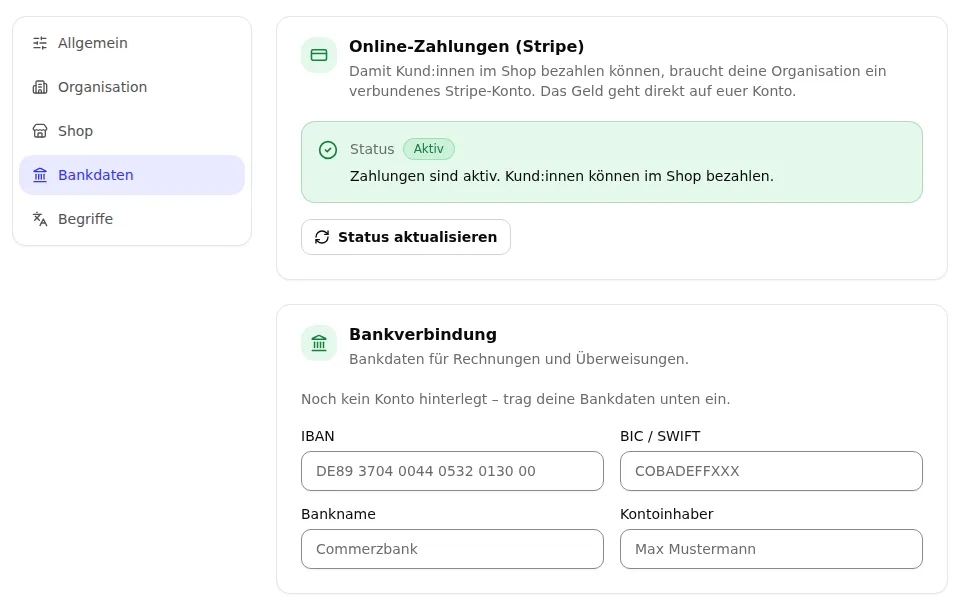
Done: the status shows "Active". Check payment methods: your shop takes card, Apple Pay and Google Pay. Apple Pay and Google Pay are on by default in Stripe under Settings → Payment methods (dashboard.stripe.com) – leave them on. You do not need to turn on other methods; Plexbook does not offer them at checkout.
Tips
- Plexbook takes no commission on your bookings – only Stripe's fees apply.
- Use the same company name as on your invoices; different names often lead to questions from Stripe.
- New details Stripe asks for later (e.g. after the first sales) show up in the Action center and under Bank Details.
- For pure tests use the demo – please make no test purchases in the live account without refunding them.
Common problems
The status stays on Details missing.
Click Complete details at Stripe – Stripe shows exactly what is missing (often an ID photo, the website or details of further owners).
The status has been In review for days.
Click Refresh status. If nothing changes, look for open tasks in the Stripe dashboard under Settings → Business details or write to us – we will look into it with you.
The Stripe link expired.
No problem: click Connect with Stripe or Complete details at Stripe again. Plexbook opens a new link automatically and keeps your details.
Payouts are not enabled at Stripe yet.
Payments already work, but Stripe still needs the bank account or its confirmation. Add the IBAN at Stripe; the money is collected and paid out afterwards.
I connected the wrong Stripe account.
Write to us in the Help tab of the dashboard. For security reasons only we can switch to another account.
Explainer videos for each part
Create and connect a Stripe account
Video coming soonA short explainer video for this guide will appear here soon. Verify your identity and add a bank account
Video coming soonA short explainer video for this guide will appear here soon. Check Apple Pay and Google Pay
Video coming soonA short explainer video for this guide will appear here soon.
Menu names adapt to your industry – instead of "Courses" you may see "Classes" or "Services".